
Manuals should come alive.
Manuscript — for the web.
설명서는 살아 움직여야 하니까,
웹을 위한 매뉴스크립트.
- Web tours
- Web manuals
- Video creation
- No-install replay
- 웹 시연
- 웹 매뉴얼
- 동영상 제작
- 설치 없이 재생
No more clunky screen recordings and stuttering voice-overs. One click and the narration follows the guide text you wrote while the web page comes alive and plays itself, step by step.
Pick just the parts of the site you want to show, click, and a custom demo video comes together. One record button covers the whole arc — author, save, play. Install now and put together the perfect web demo in a minute.
번거로운 화면 녹화도, 어색한 내레이션도 필요 없어요. 클릭 한 번이면 직접 작성한 설명에 맞춰 음성이 흘러나오고, 화면이 단계별로 살아 움직입니다.
내가 원하는 웹사이트 가이드라인 구성만 쏙쏙 골라 클릭해도 맞춤형 시연 영상이 뚝딱 완성! 녹화 버튼 하나로 가이드 영상 제작부터 저장, 재생까지 한 번에 해결하세요. 지금 바로 다운로드하고, 1분 만에 완벽한 웹 소개 영상을 만들어 보세요!
NEW Serve manuals & demos to every visitor with just manuscript-player.js — no extension. NEW 이제 확장 없이 manuscript-player.js 하나로 모든 방문자에게 매뉴얼·시연 제공.Web Store update in review — grab v… .zip now with manual install instructions below.
웹 스토어 업데이트 심사 중 — 지금 바로 v… .zip 을 받아 아래 안내대로 수동 설치할 수 있어요.
 Watch the demo
 소개 영상 보기
What's inside
핵심 기능
Eight little touches that make it nice.
마음에 들 만한 여덟 가지.
Stays put when pages change
페이지가 바뀌어도 그대로
Manuscript remembers the parts of your page in three ways at once, so a small redesign or text tweak won't make your tour go missing.
Manuscript 는 페이지의 위치를 세 가지 방법으로 기억해 둡니다. 약간의 디자인이나 글자 변경에도 시연이 사라지지 않아요.
Works inside embedded frames
임베드된 화면 안도 OK
Pages with embedded mini-pages inside (like documents or maps) work too. Pick whatever you want to highlight, even in there.
문서 미리보기나 지도처럼 페이지 안에 또 다른 화면이 들어 있어도, 그 안의 요소까지 함께 강조할 수 있어요.
Keeps going to the next page
다음 페이지로 자연스럽게
Mark a step as "wait for a click". When someone clicks and the site moves to the next page, your tour picks right back up. Sites that switch screens with a query or hash address (?tab=, #/reports) are handled too — just turn on full-URL matching in the settings.
"클릭을 기다리는" 스텝을 만들 수 있어요. 사용자가 버튼을 눌러 다른 페이지로 넘어가도 시연은 새 페이지에서 자연스럽게 이어집니다. 쿼리나 해시로 화면이 바뀌는 사이트(?tab=, #/reports)도 설정에서 전체 URL 일치만 켜면 그대로 따라갑니다.
Friendly notes and arrows
친근한 메모와 화살표
Add a short note, a circle, an arrow, or a hand-drawn doodle. They can fade in, slide in, or bounce — your call.
짧은 메모·동그라미·화살표·손그림 낙서까지 더할 수 있어요. 등장 방식도 페이드·슬라이드·통통 튀기 중에서 골라 보세요.
Reads your tour out loud
설명을 소리 내어 읽어줘요
Type a short description for each step and Manuscript will speak it during playback. Arrow keys move between steps, Space pauses, Esc exits.
각 스텝에 짧은 설명을 적어 두면 재생할 때 목소리로 읽어줍니다. 방향키로 이동, Space 로 일시정지, Esc 로 종료.
Speaker notes window
발표자 노트 창
Move the script and controls to a second screen. You read the notes, the audience watches the tour — no need to memorise anything.
대본과 컨트롤을 두 번째 화면으로 옮길 수 있어요. 내가 노트를 보면서 진행하면, 청중에게는 깔끔한 시연만 보입니다.
Export it as a video
동영상으로 내보내기
One button plays your tour into a video file — spotlights, notes, and the read-aloud narration baked right in. It follows the tour across multiple pages, stops itself at the end, and asks where to save. Tap Space mid-record to chip in with your own voice.
버튼 하나로 시연이 영상 파일로 저장됩니다 — 강조 표시·메모·읽어주는 안내까지 그대로 담겨요. 여러 페이지를 넘나드는 시연도 따라가며 하나로 잇고, 끝나면 알아서 멈춰 저장 위치를 묻습니다. 녹화 중 Space 로 내 목소리도 보탤 수 있어요.
Play tours from a shared repo
공유 저장소에서 재생
Point Manuscript at a public GitHub repo and a Remote Library tab appears in the popup. Tours your team pushes show up there, ready to play in any tab — edits stay temporary, and a "Save to local" button keeps a copy whenever you want one.
공개 GitHub 리포만 알려주면 팝업에 원격저장소 탭이 생깁니다. 팀이 푸시한 시연이 거기 떠서 어느 탭에서든 바로 재생돼요 — 편집은 임시로만 남고, 필요하면 '내 라이브러리에 저장' 버튼으로 사본을 둘 수 있어요.
How it works
이렇게 만듭니다
Five easy steps, start to finish.
다섯 단계면 끝납니다.
Open Manuscript
매뉴스크립트 열기
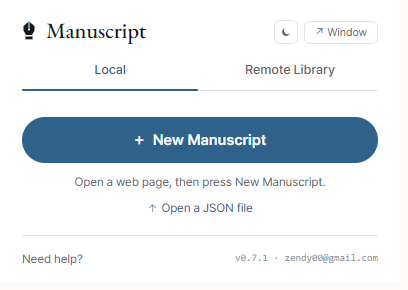
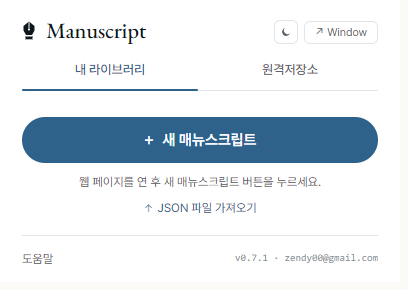
Click the Manuscript icon in your toolbar and choose New Manuscript. A small panel slides in next to the page, ready to use. It also borrows the page's colors and fonts so your tour fits right in.
브라우저 도구막대의 매뉴스크립트 아이콘을 누르고 새 매뉴스크립트를 선택하세요. 페이지 옆에 작은 작업 패널이 나타나고, 페이지의 색과 글꼴까지 자연스럽게 따라가 한 화면처럼 어울립니다.
Tap the part you want to show
강조하고 싶은 곳을 클릭
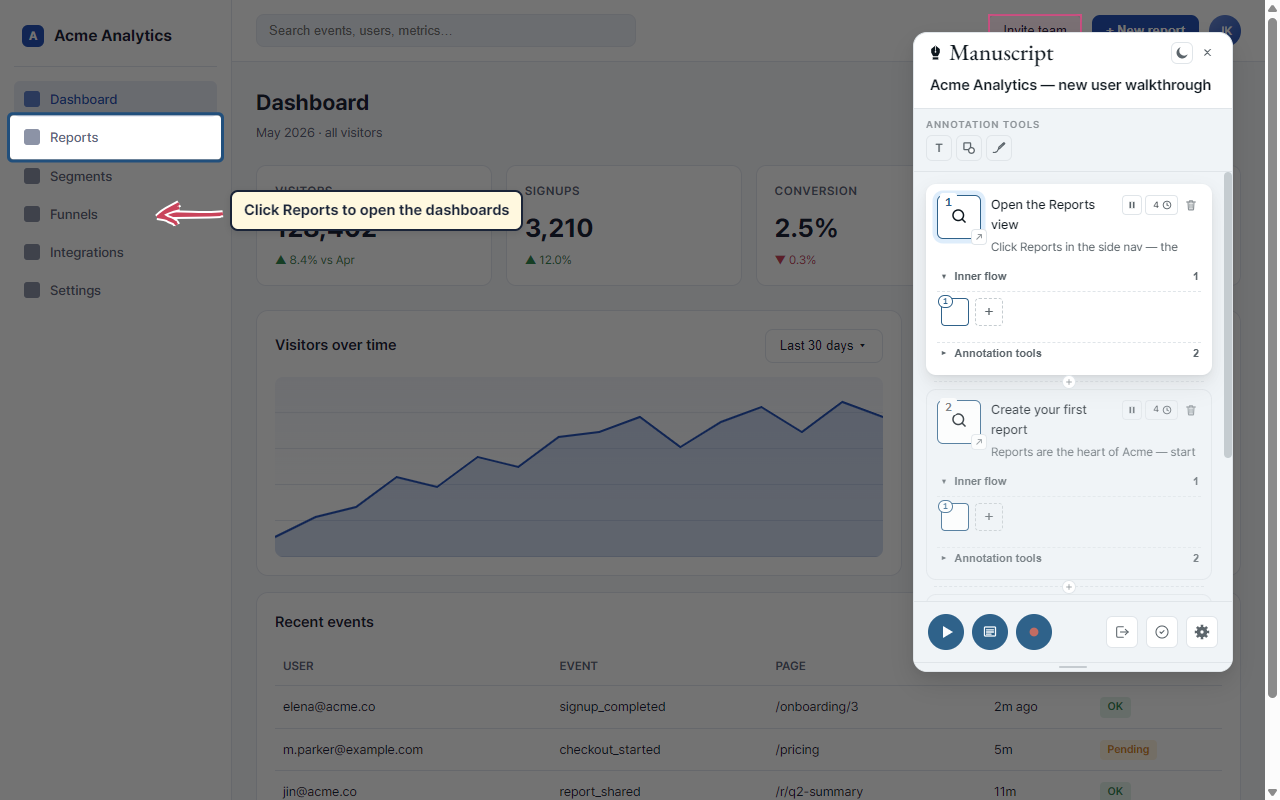
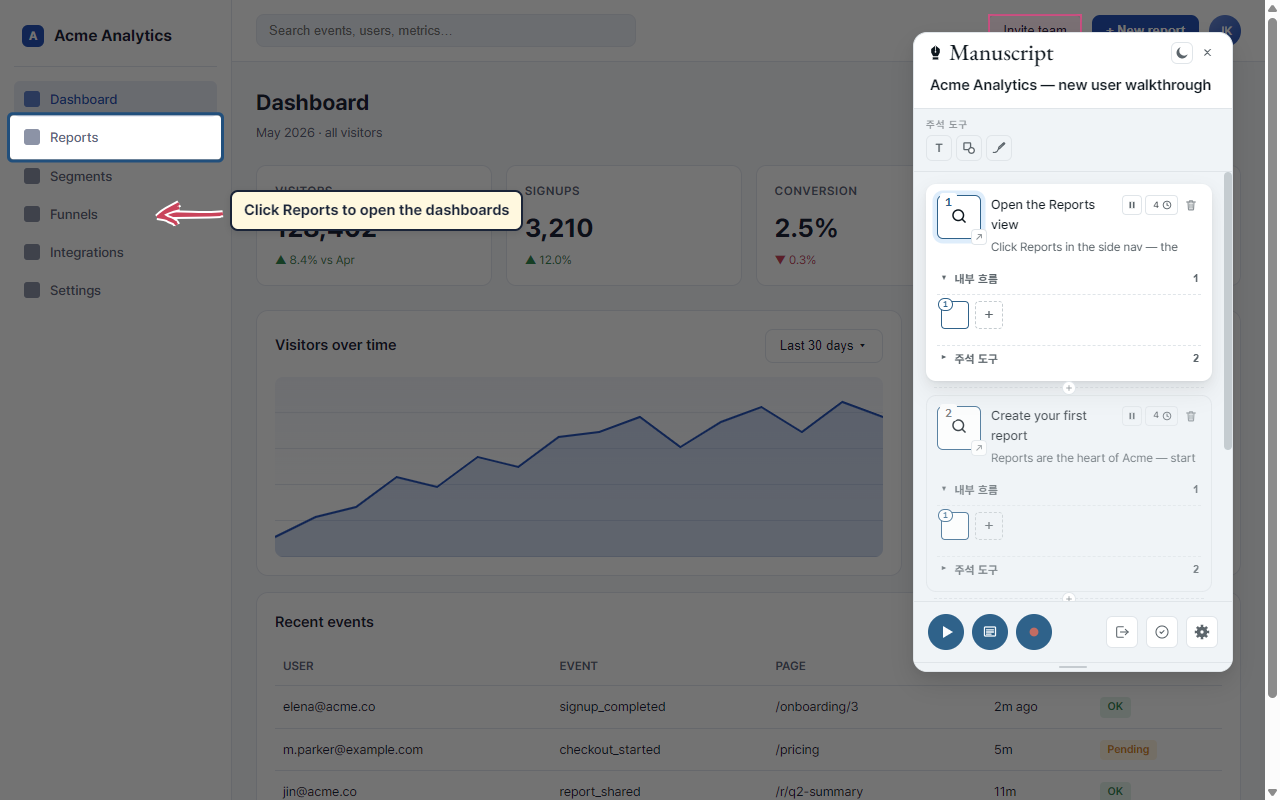
On each step, click the small wand to start picking. Hover over the page and a pink outline follows your mouse — click once to lock in your target. That part shines while everything else softly dims.
각 스텝의 작은 픽커 버튼 을 누른 다음 페이지 위로 마우스를 움직이면 분홍색 테두리가 따라옵니다. 원하는 곳을 한 번 클릭하면 그 부분만 또렷이 강조되고 나머지는 살짝 어두워져요.
Add a note, shape, or doodle
메모·도형·낙서 더하기
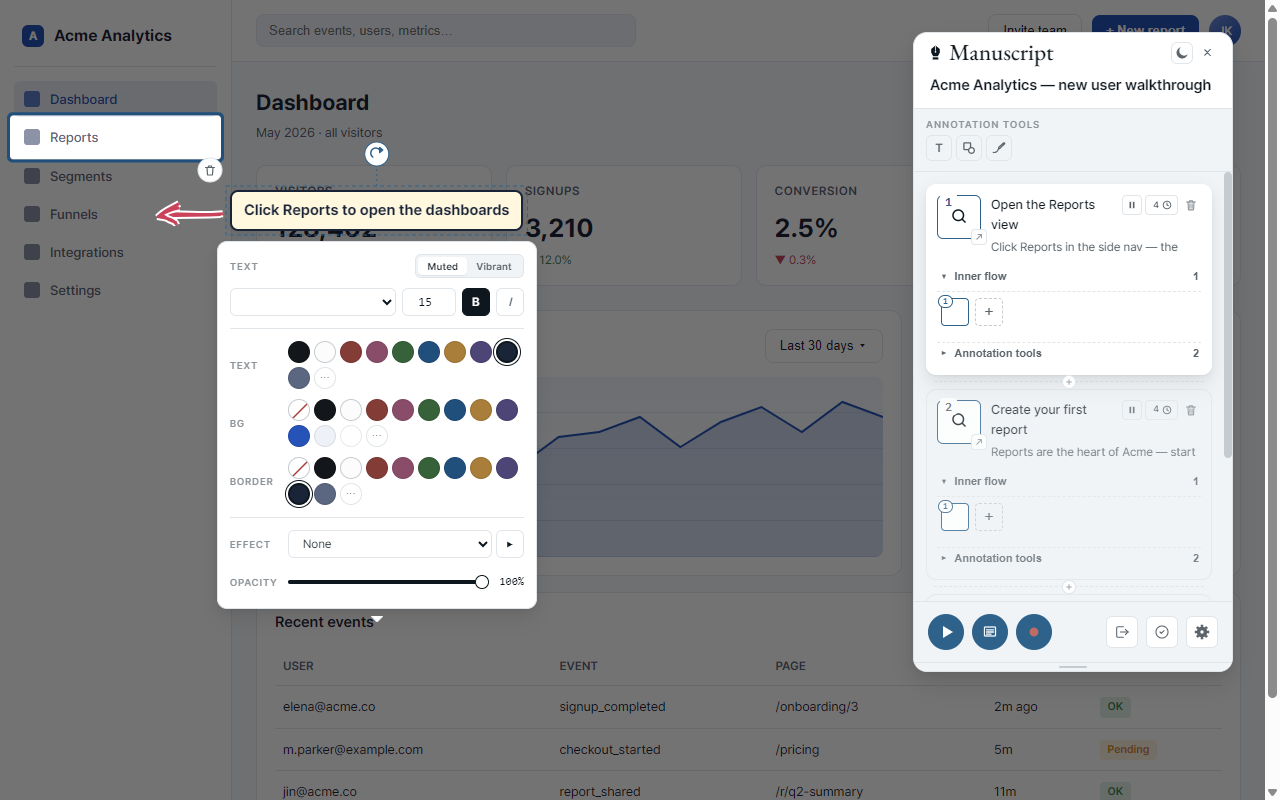
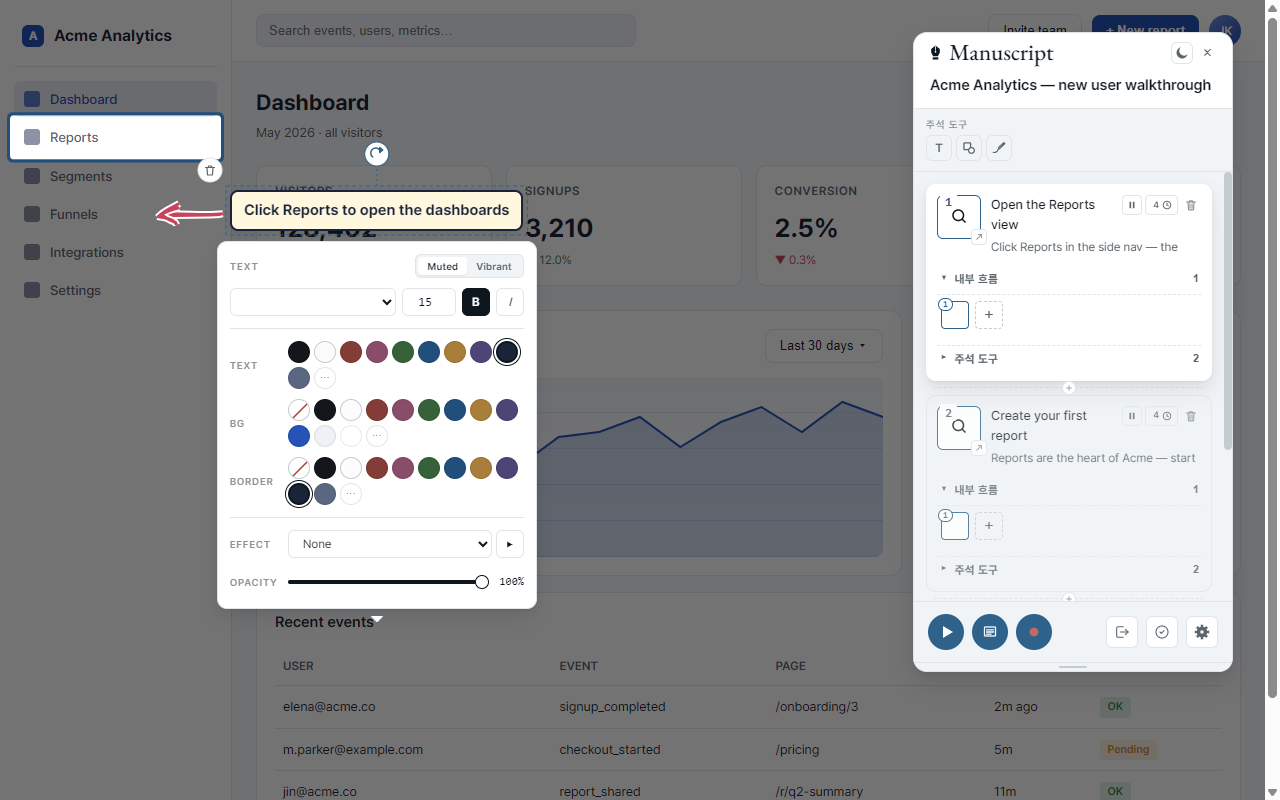
Press for a text box, pick one of eight shapes, or sketch with the freehand tool. Click anything you've added to change its color, font, or how it floats in.
버튼으로 텍스트 상자, 여덟 가지 도형, 손그림까지 자유롭게 더할 수 있어요. 추가한 항목을 클릭하면 색·글꼴·등장 효과를 그 자리에서 바꿀 수 있습니다.
Build out the rest of the tour
나머지 단계 차곡차곡
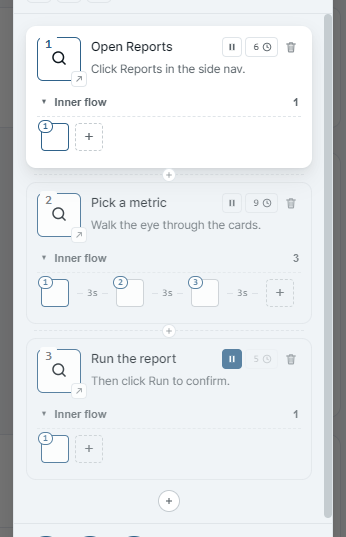
Use the between cards to insert a step, or the bigger at the end to add one. Drag cards around to reorder. Click any card and the page scrolls to that step with the spotlight on.
카드 사이의 로 중간에 끼워넣고, 맨 아래 큰 로 새 단계를 추가합니다. 카드를 끌어서 순서를 바꿀 수도 있어요. 카드를 누르면 그 단계로 페이지가 자연스럽게 이동하면서 강조 표시가 나타납니다.
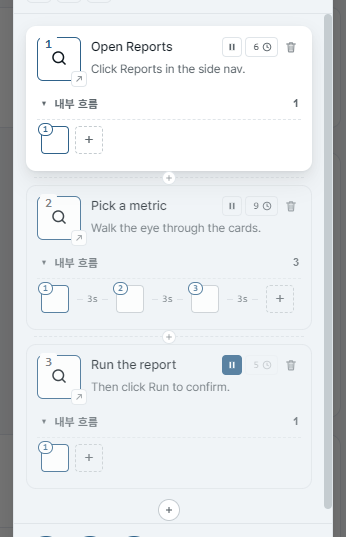
Press play — and you're done
재생만 누르면 완성
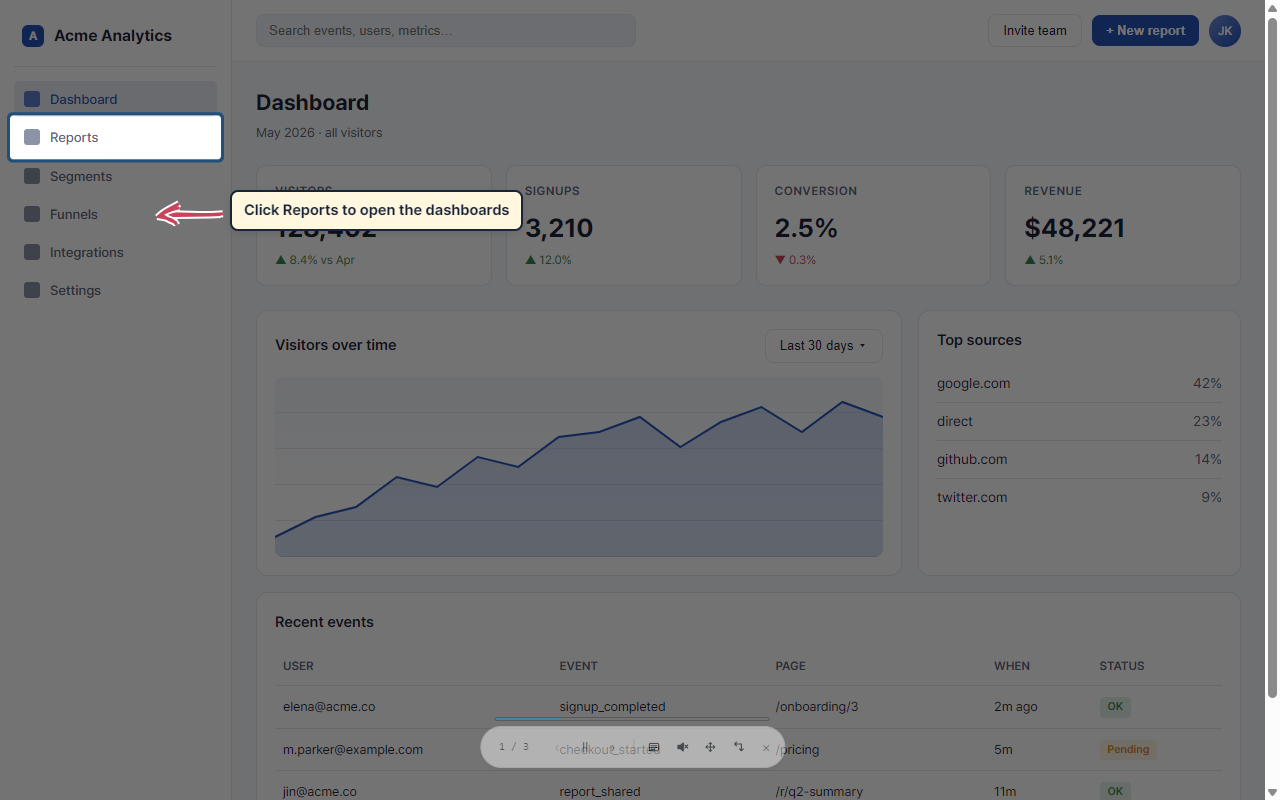
Tap at the bottom of the panel to start the tour. A small playback bar appears. Use ← → to move, Space to pause, Esc to exit. Want to read your notes on another screen? Pop out the speaker-notes window.
패널 아래쪽의 를 누르면 시연이 시작됩니다. 작은 재생 바가 나타나요. ← → 로 이동, Space 로 일시정지, Esc 로 종료. 노트를 다른 화면에서 보고 싶다면 발표자 노트 창을 따로 띄울 수 있어요.
That’s the whole flow. For every tool in detail, see the full user guide.
여기까지가 전체 흐름이에요. 자세한 사용설명서는 아래 링크를 참조하세요.
→ Open the user guide → 사용설명서 보기Replay anywhere
어디서나 재생
Share a tour with anyone — no extension.
확장 없이, 누구에게나 시연을.
The standalone player is one tiny script. Drop it on any page, hand it a tour file, and visitors replay the whole thing — spotlights, notes, narration — with nothing to install.
스탠드얼론 플레이어는 작은 스크립트 하나면 됩니다. 어떤 페이지에든 넣고 시연 파일만 건네면, 방문자는 설치할 것 없이 전부 그대로 재생해요 — 강조·메모·음성 안내까지.
- Nothing to install. No extension — it works for every visitor.
- The same tour file. Author once in the extension, replay it anywhere.
- Across pages. A multi-page walkthrough carries itself from page to page.
- You host it. Just one
<script>— nothing uploaded, nothing tracked.
- 설치가 필요 없어요. 확장 없이 모든 방문자에게 그대로 동작합니다.
- 같은 시연 파일 그대로. 확장에서 한 번 만들고, 어디서나 재생.
- 여러 페이지도. 여러 페이지를 넘나드는 흐름을 스스로 따라갑니다.
- 내가 직접 호스팅.
<script>한 줄 — 업로드도, 추적도 없어요.
<!-- one script, any page -->
import player from './player/manuscript-player.0.1.0.esm.js';

const tour = await fetch('./tour.json').then(r => r.json());
await player.load(tour);
await player.play();
For AI agents
AI 에이전트용
Author with an AI agent.
AI 에이전트로 작성하세요.
Hand SKILL.md to an AI agent along with the URL
you want to tour. The agent emits a Manuscript scenario
JSON — ready to load and play.
SKILL.md 와 시연할 페이지 주소를 AI 에이전트에게
전달하면, Manuscript 시나리오 JSON 을 만들어 줍니다. 그대로
불러와 재생만 누르면 됩니다.
Pick a URL
URL 준비
The page you want a tour of.
시연하고 싶은 페이지 주소를 정합니다.
Hand SKILL.md + URL to your agent
SKILL.md 와 URL 을 에이전트에 전달
Claude, Cursor, Windsurf, Cline, ChatGPT — anywhere you talk to an AI works.
Claude, Cursor, Windsurf, Cline, ChatGPT 등 AI 에이전트라면 어디서나 동작합니다.
Load the JSON in Manuscript
받은 JSON 을 Manuscript 로 불러오기
Import the file, press play. Manuscript finds each spot on the page for you.
파일을 불러오고 재생만 누르면, Manuscript가 각 요소의 위치를 알아서 찾아갑니다.
Example prompt
예시 프롬프트
Use SKILL.md. Generate a Manuscript tour for
https://example.com/dashboard. English, 6 steps.
Use SKILL.md. Generate a Manuscript tour for
https://example.com/dashboard. Korean, 6 steps.AI authoring is a head start, not a finishing line. Open the JSON in Manuscript and review the steps before you share — Manuscript remembers each spot three different ways, so the tour keeps playing even when the AI's first guess isn't quite right.
AI 작성은 출발점일 뿐이니, JSON 을 Manuscript 로 불러와 한 번 확인한 다음 공유하세요. Manuscript 는 각 자리를 세 가지 방법으로 기억하기 때문에, AI 의 첫 시도가 완벽하지 않아도 시연이 끊기지 않습니다.
Install
설치
Two ways in — pick the one that fits.
두 가지 설치 방법 — 본인에게 맞는 쪽으로.
Most people want the Web Store path — one click and the browser handles updates. If you'd rather test the latest dev build before it clears Web Store review, the manual .zip path below has you covered.
대부분은 웹 스토어 경로가 편합니다 — 한 번 클릭하면 브라우저가 업데이트까지 알아서 챙겨요. 웹 스토어 검수 전의 dev 빌드를 먼저 써보고 싶다면 아래 수동 .zip 경로를 골라주세요.
Manuscript is live on the extension store. Hit the button below, confirm Install Manuscript, and you're ready to go in seconds — the browser keeps it updated on its own.
Manuscript 는 확장 스토어에서 바로 받을 수 있습니다. 아래 버튼을 누르고 설치만 확인하면 몇 초 만에 준비 완료 — 업데이트는 브라우저가 알아서 챙겨줍니다.
→ Install Manuscript (Web Store)
- Click the button above — it opens Manuscript's page on the extension store.
- Hit Install, then Add extension when the browser asks to confirm.
- Click the puzzle-piece icon in the browser toolbar and pin Manuscript so it's always one click away.
-
Open any regular web page (
github.com, a help page, your own product) and click the Manuscript icon. The first time, the browser will ask for page access — say yes and you're ready to go.
- 위 버튼을 누르면 확장 스토어의 Manuscript 페이지가 열립니다.
- 설치 → 확인 창에서 확장 프로그램 추가 를 누릅니다.
- 브라우저 도구막대의 퍼즐 아이콘에서 Manuscript 를 고정해 두면 언제든 한 번 클릭으로 열 수 있어요.
-
아무 웹 페이지(
github.com, 도움말 페이지, 본인의 사이트 등)를 열고 Manuscript 아이콘을 누르세요. 처음 한 번은 페이지 접근 권한을 묻는데, 허용하시면 바로 시연을 만들 준비가 끝납니다.
The latest dev build straight from main — typically a
release or two ahead of the Web Store, since store review takes
a few days. You'll handle updates yourself by re-downloading this
file when a new version lands. Good fit for: testing pre-release
features, internal tools that can't reach the Web Store, or
"I want it now".
main 브랜치의 최신 dev 빌드 — 스토어 검수가 며칠 걸리므로
보통 웹 스토어 버전보다 한두 단계 앞서 있습니다. 새 버전이 나오면 이
파일을 다시 받아 직접 갱신해 주셔야 합니다. 추천 대상: 출시 전 기능을
먼저 써보고 싶은 분, 웹 스토어 접근이 어려운 사내 환경, 또는
"지금 당장 써보고 싶다"는 분.
SHA-256
checking…
· .sha256
·
SHA-256
확인 중…
· .sha256
·
-
Grab the file above and unzip it somewhere you'll keep it
(for example
C:\Users\<you>\Documents\manuscript). Leave the folder where it is — the browser reads from there every time it starts. -
Open a new tab and type
chrome://extensions/(oredge://extensions/) in the address bar. - Flip the Developer mode switch on (top-right corner).
- Click Load unpacked (top-left).
-
Choose the unzipped
manuscript-x.y.zfolder. Manuscript pops into the list. - Click the puzzle-piece icon in the browser toolbar and pin Manuscript so it's always one click away.
-
Open any regular web page (
github.com, a help page, your own product) and click the Manuscript icon. The browser asks for page access on first run — say yes and you're done.
-
위의 다운로드 버튼으로 파일을 받고, 잘 두실 폴더(예:
C:\Users\<본인>\Documents\manuscript)에 압축을 풀어 주세요. 그 폴더는 그대로 두시면 됩니다 — 브라우저가 켜질 때마다 그곳에서 읽어옵니다. -
새 탭을 열고 주소창에
chrome://extensions/(또는edge://extensions/) 를 입력하세요. - 오른쪽 위의 개발자 모드 스위치를 켭니다.
- 왼쪽 위의 압축해제된 확장 프로그램 로드 버튼을 누릅니다.
-
압축을 푼
manuscript-x.y.z폴더를 선택하면 Manuscript 가 목록에 나타납니다. - 브라우저 도구막대의 퍼즐 아이콘에서 Manuscript 를 고정해 두면 언제든 한 번 클릭으로 열 수 있어요.
-
일반 웹 페이지(
github.com, 도움말 페이지, 본인의 사이트 등)에서 Manuscript 아이콘을 누르세요. 처음 한 번은 페이지 접근 권한 — 허용하시면 끝.
chrome://, edge://) or the new-tab page — the browser
doesn't allow extensions there. If a tab was already open before you installed,
just refresh it once.
chrome://,
edge://) 와 새 탭에서는 동작하지 않아요 — 브라우저 정책으로 막혀
있습니다. 설치 전에 열려 있던 탭은 한 번만 새로고침해 주시면 됩니다.
Wondering what changed between versions? → See the changelog
버전별로 무엇이 바뀌었는지 궁금하다면? → 변경사항 보기
Good to know
알아두면 좋은 점
A couple of limitations to keep in mind.
알아두실 제한사항.
| Capability | 항목 | Status | 상태 | Note | 비고 |
|---|---|---|---|---|---|
chrome:// / edge:// pages | chrome:// · edge:// 페이지 |
Blocked | 불가 | The browser's own settings pages don't allow any extension to run there. | 브라우저 자체 설정 페이지에는 어떤 확장 프로그램도 작동할 수 없어요. |
| Pages from other sites embedded inside the page | 다른 사이트가 들어 있는 프레임 | Limited | 제한적 | You can still pick something inside one — the click goes through. But during playback Manuscript can't reach back in to find that spot again, because the browser blocks one site from looking inside another site's frame. Embedded pages from the same site work fully. | 안에 있는 요소를 선택하는 것까지는 됩니다 — 클릭은 통과해요. 다만 재생 시점에는 Manuscript 가 그 자리를 다시 찾을 수 없습니다. 브라우저가 한 사이트에서 다른 사이트의 프레임 안을 들여다보지 못하도록 막기 때문이에요. 같은 사이트에서 들어온 프레임은 문제 없이 작동합니다. |
| Voice narration on pages a tour auto-advances to | 투어가 자동으로 넘어가서 연 페이지의 음성 안내 | One click per page | 페이지마다 클릭 한 번 | Browsers don't let a page play sound until someone has interacted with it. So on a page the tour opens on its own (auto-advancing across pages), narration can't start there until you click — the speaker icon turns orange and a little "click anywhere for sound" hint bounces above it. Click anywhere on the page and narration begins. Pages you advance yourself by clicking keep sound flowing. (Applies to both the extension and the standalone player.) | 브라우저는 누군가 페이지를 한 번 건드리기 전까지 소리 재생을 막습니다. 그래서 투어가 스스로 연 페이지(페이지 간 자동 진행)에서는 클릭 전까지 음성이 시작되지 못해요 — 스피커 아이콘이 주황색으로 바뀌고 "아무 곳이나 클릭하세요" 안내가 그 위에서 통통 튑니다. 페이지 아무 곳이나 한 번 클릭하면 음성이 시작됩니다. 직접 클릭해서 넘긴 페이지는 소리가 알아서 이어져요. (확장·독립 플레이어 모두 해당.) |