

Core features · Terminal
Terminal
The foundation of Orch term. It renders real shell sessions fast and handles Korean/English input, emoji, and newlines smoothly.
Open a new terminal
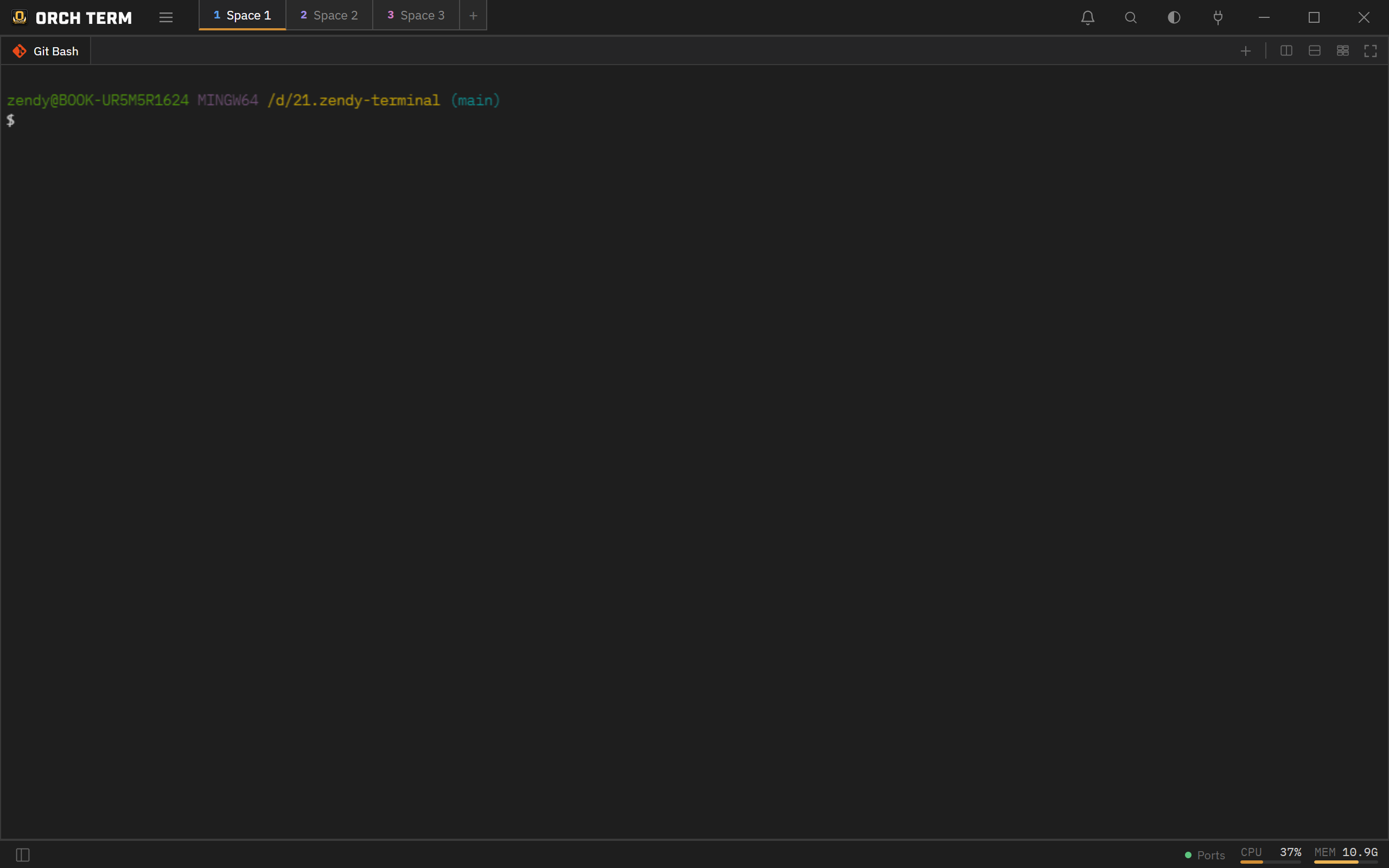
Open one with the new-tab button or the actions in the top-right of a pane. A new terminal starts at the active project root (per the Explorer). Pressing + opens a picker dropdown that auto-detects installed shells.
The chosen shell opens as a new tab in the active pane. Even the first key you press right after startup is never lost.
Copy · paste
Ctrl+C copies when there's a selection, otherwise it acts as an interrupt, and Ctrl+V pastes — working regardless of the Korean/English input state. Windows clipboard history (Win+V) is supported too, and pasting an image attaches it as a file so claude and others read it directly.
Newlines (without submitting)
When entering multiple lines into an AI CLI (Claude Code, etc.), use Shift+Enter or Ctrl+Enter to send a newline instead of submitting. Characters and their order are preserved even mid-composition in Korean input.
Scrollback · jump to bottom
The number of history lines the terminal keeps (scrollback) defaults to 1,000 lines; adjust it to 100–50,000 lines under Settings → Terminal → Scrollback, applied instantly. When you scroll up, a jump to bottom button appears in the bottom-right to jump to the latest output.
Shell exit · auto-close
When the shell ends (exit), the tab closes automatically. If it's a single pane with a single tab, it's replaced with a new terminal instead of an empty screen. Closing a tab cleans up the entire process tree beneath it, leaving no zombie processes.
Terminals that outlive the app
Closing the app does not stop what is running inside your terminals. Shells, builds, tests, and AI conversations keep going, and reopening the app reattaches to those same sessions — scrollback included.
Terminals are owned by a resident daemon, not by the app window. That is why sessions survive a close, an update restart, and even an app crash.
When you close the app
If terminals are running you are asked: Keep in background / Close all / Cancel. Choosing "Don't ask again" stores your answer in Settings (Terminal → on quit), where you can switch back to "Ask every time".
- Keep in background — sessions stay alive and resume the next time you open the app.
- Close all — terminals are cleaned up; the daemon steps down shortly after.
Good to know
- Output keeps accumulating while the app is closed. Scrollback keeps the most recent 4 MiB per session; older output is dropped.
- If no app attaches for a long time the daemon exits on its own (24 hours by default), cleaning up any remaining sessions.
- On the rare update that must close terminals, you are asked first — "this update will close N running terminals". AI conversations come back through session resume after the restart.
- Remote (SSH) tabs are out of scope — this applies to local terminals.
Keyboard shortcuts
| Key | Action |
|---|---|
| Ctrl+C | Copy if selected, otherwise interrupt |
| Ctrl+V | Paste (including Win+V) |
| Shift+Enter | Newline (no submit) |
| Ctrl+Enter | Newline (no submit) |